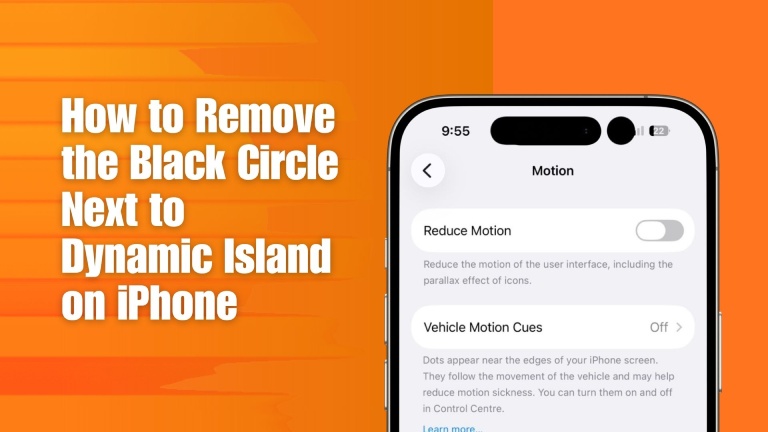
Today I noticed a small black circle next to the Dynamic Island on my Apple iPhone 17. I don’t know why there is a black circle next to the Dynamic Island. I searched for it, but there isn’t enough information. Some other people also see it beside the Dynamic Island, as I did. It can look like a second small island or a strange black dot.
After doing a lot of searching, I found that this does not mean that your iPhone has a physical defect in many cases. This type of circle can be connected to a live activity, an app running in the background, or an iOS software glitch.
Apple’s Dynamic Island can display live activities from supported apps, including navigation, recordings, and other ongoing activities. These activities can appear around the Dynamic Island and change depending on what is running on the iPhone.
Why is there a black circle next to the Dynamic Island?
There are several possible reasons.
1. A live activity is running.
The Dynamic Island can show ongoing activities from apps. If more than one activity is active, iOS can display additional information around the Dynamic Island.
For example, an app may be using a live activity for navigation, a recording, or another ongoing task.
I try touching and holding the Dynamic Island to see whether it expands or displays information. I can also swipe across the Dynamic Island to switch between activities.
2. A third-party app may be causing the circle to appear.
A third-party app running in the background can sometimes leave an unusual Dynamic Island element on the screen.
I try opening the app switcher and closing recently used apps. Then check whether the black circle disappears.
Some iPhone users have reported that closing background apps or restarting the iPhone removed the unexpected circle.
3. It could be an iOS glitch.
There have been Apple Community reports from iPhone users who noticed an unexpected black dot or circle near the Dynamic Island.
In some cases, restarting the iPhone cleared the problem.
If the circle appeared suddenly and there is no obvious app or activity responsible, a restart is one of the easiest things to try.
How do I remove the black circle from iPhone
Method 1: Restart your iPhone.
First, I tried a normal restart.
I turned off my iPhone, waited a few seconds, and turned it back on.
Then I checked that the black circle had disappeared. So the black circle is gone from my iPhone.
There are other methods too, if you didn’t get success to solve this problem, such as;
Method 2: Force restart the iPhone.
If a normal restart does not help, try a force restart.
- For iPhones with Face ID:
- Press and quickly release Volume Up.
- Press and quickly release Volume Down.
- Press and hold the side button.
- Keep holding the side button until the Apple logo appears.
- Release the button when you see the Apple logo.
Apple recommends these steps for force restarting an unresponsive iPhone.
A force restart does not normally erase your personal data.
Method 3: Close recently used apps.
If you think an app is responsible, open the app switcher and close apps that are currently running.
Then return to the Home Screen and verify the Dynamic Island again.
This is particularly worth trying if the circle appeared after using a navigation, recording, media, or other Live Activity-enabled app.
Method 4: Check for an iOS update
Go to:
Settings → General → Software Update
If an update is available, install it after making sure your iPhone has sufficient battery or is connected to power.
Apple recommends updating iOS when an iPhone is experiencing software problems, as updates can include bug fixes and other improvements.
However, most of the time, this black circle next to the iPhone Dynamic Island goes away when you turn off or restart the iPhone.
What if the black circle does not appear in a screenshot?
If you take a screenshot and the black circle does not appear in the screenshot, but you can still see it physically on the display, the problem may be different from an ordinary software indicator.
An Apple Community discussion about a persistent circular mark near the Dynamic Island noted that if it does not appear in screenshots or screen recordings, the display itself may need to be evaluated.
In that situation, don’t assume that a restart will permanently fix it.
Check whether the mark remains after:
- Restarting the iPhone
- Force restarting the iPhone
- Updating iOS
- Closing all recently used apps
If it remains visible, especially if it looks like a physical spot or display defect, contacting Apple Support or an Apple Authorized Service Provider is the safer option. Apple provides service options for iPhone hardware problems.
Is the black circle the camera or microphone indicator?
Not necessarily.
iOS uses orange and green privacy indicators to show microphone and camera activity. A plain black circle should not automatically be interpreted as a camera or microphone indicator.
There are also different types of Dynamic Island elements, so the exact appearance and behavior matter.
If the circle changes color, responds when tapped, expands into the Dynamic Island, or disappears when a particular app is closed, that can provide a clue about what is causing it.
Should you be worried?
Usually, no.
If the circle appeared suddenly and disappeared after closing an app or restarting the iPhone, it is more likely to be related to software or an ongoing activity.
However, if the same black mark remains permanently, does not appear in screenshots, or looks physically embedded in the display, it is worth having the iPhone checked.
If it keeps returning, the next step is to identify which iPhone model and iOS version you are using, because the cause can vary between iOS versions and Dynamic Island-supported models.